
How to Login to cPanel at MumuHost
When you purchase a cPanel hosting plan from MumuHost, you can manage it seamlessly from your client area.
Our client area also facilitates control over various aspects of your account, billing, and any additional services you may have purchased, such as domains or professional email services.
Please follow below two methods to log into your cPanel account:
Method 1 – From Client Area
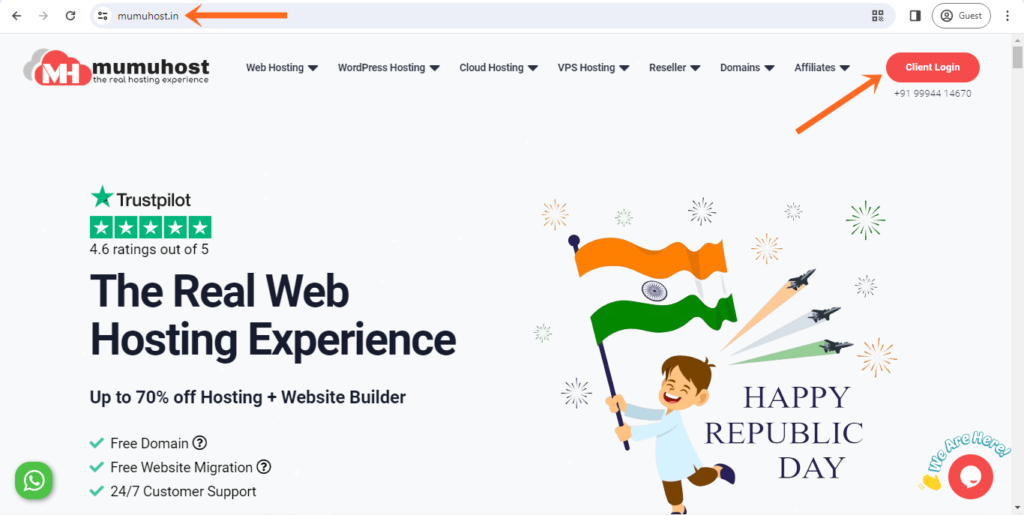
Please go to MumuHost.in and you will see the Client Login button at the top upper right corner, click on it.
Next, you’ll encounter the login page within the client area. Then, Just enter the email address and password you used when setting up your account with MumuHost.
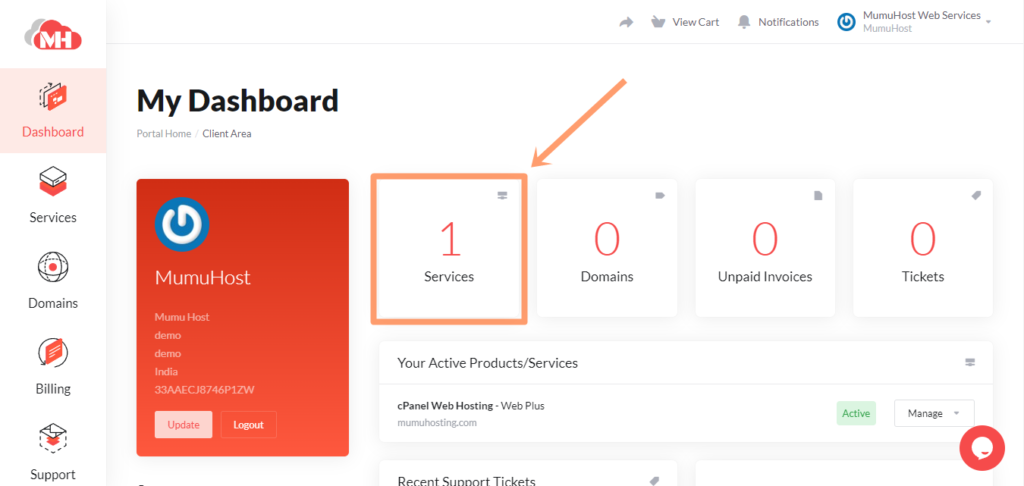
In the next section, click on Services
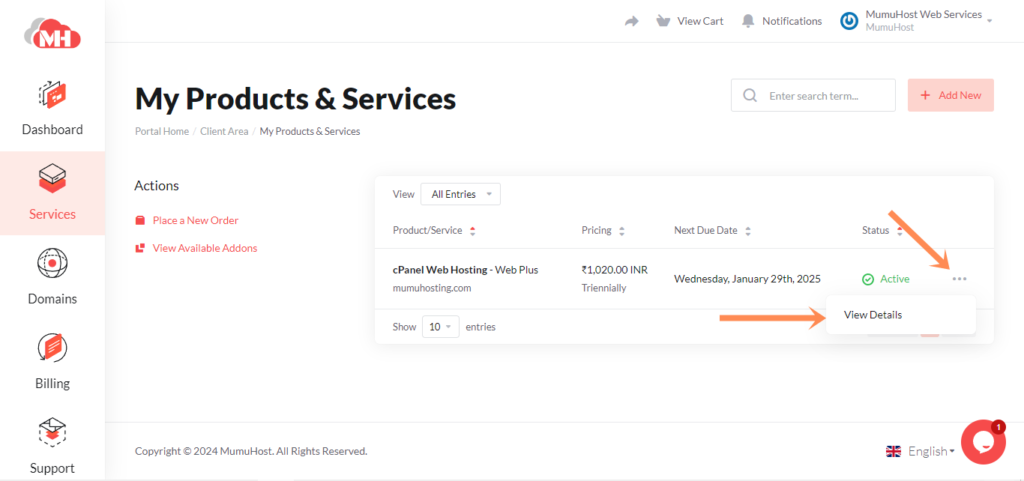
Then, on the right side click on View Details
On the next screen, click on Log in to cPanel
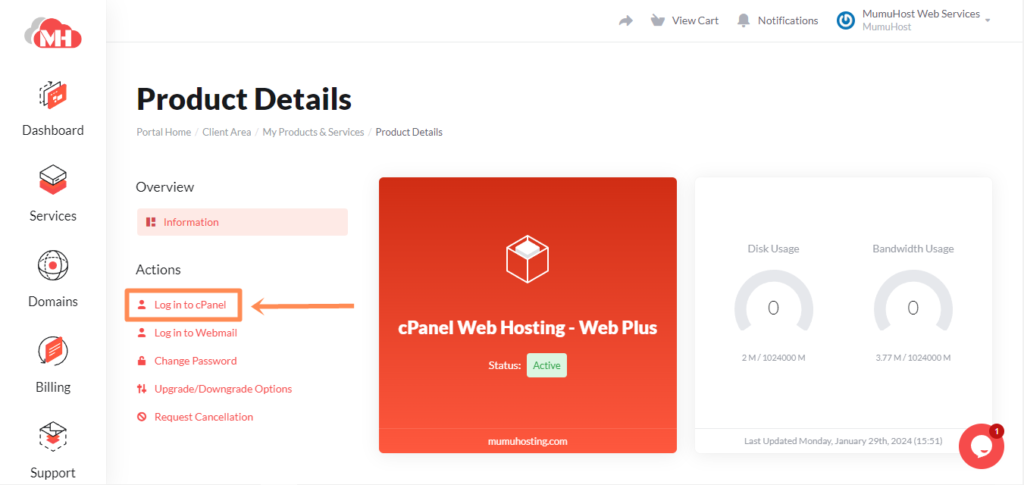
Kudos, You will be directed to your cPanel home without needing to enter your credentials 😊.
Method 2 – Using cPanel Login URL
Two alternative URLs to access the login page: via your domain name by adding /cpanel or using the MumuHost server and port.
Just go to the browser and enter your domain name like https://domain.com/cpanel
To get cPanel login details, please check the New Account Information email.
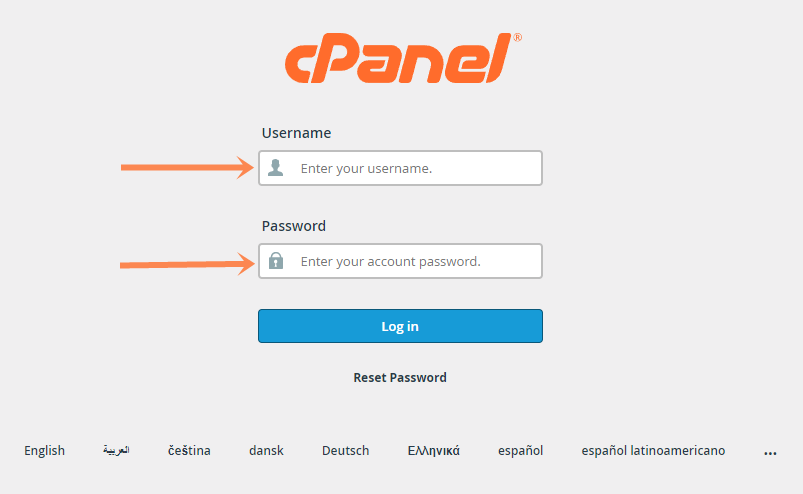
Just enter your cPanel username and password. You can also bookmark them on your browser for easier access.
If you still have any issues or confusion about how to login to cPanel, please contact our support team on live chat.