
How to set up your domain’s business email address in your Gmail.com account
You can send and receive emails using your custom domain email address directly through the Gmail interface by configuring it with your domain’s email account. This is done by setting up the account using POP3 and SMTP protocols within Gmail. Once configured, Gmail acts as your email client, allowing you to manage your domain-based emails seamlessly.
In this tutorial, we will explain how to set up your domain’s email address in your Gmail.com account.
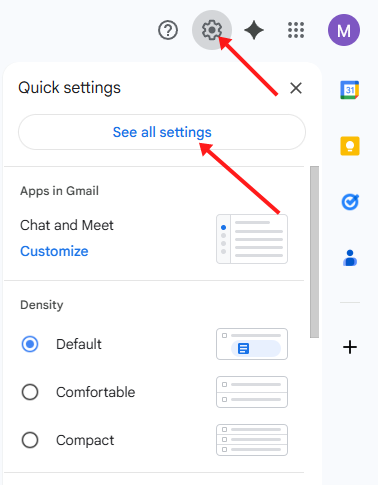
1. Log into your Gmail account and choose ‘See all Settings’, from the Settings Gear Icon.
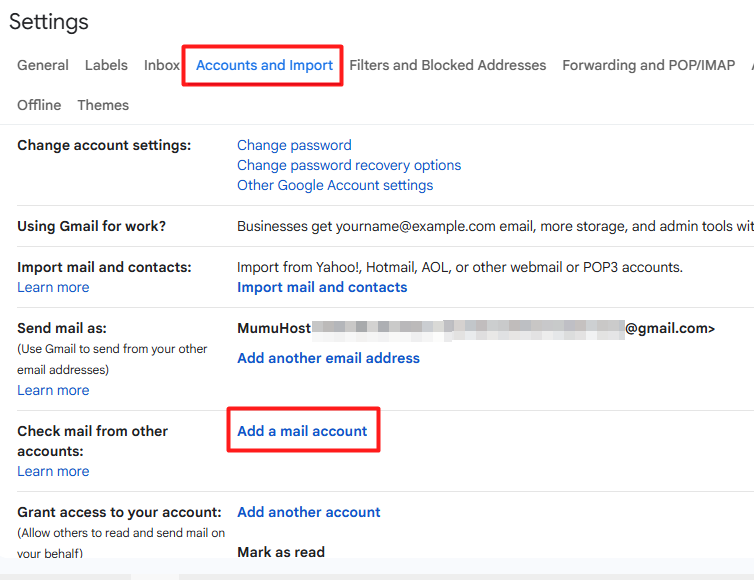
2. Go to ‘Accounts and Import’. Scroll down a bit and click Add a mail account section from Check mail from other accounts section.
3. Enter the email address you would like to add (e.g. [email protected]) and click the Next button
4. Choose ‘Import emails from my other account (POP3)’ option and click ‘Next’
5. Enter the mail settings for your email address:
- Username: enter your full email address (e.g. [email protected])
- Password: enter the password for your email address
- POP Server: mail.yourdomain.com
- Port: 995
- Leave a copy of the retrieved message on the server should be checked if you want to save your emails on your mail server as well.
- Always use a secure connection (SSL) when retrieving mail should be checked.
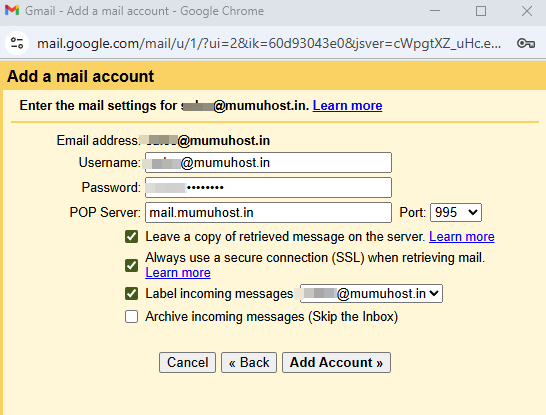
If you’re using cPanel as control panel, your mail setting can be found in cPanel > Email Accounts > Set Up Mail Client.
6. Click on Add Account button.
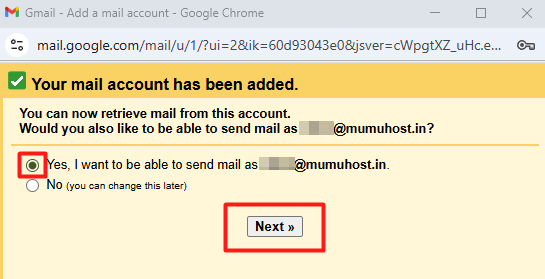
If successful, you will see a message stating: Your mail account has been added.

Next, you will be asked if you also like to be able to send mail as (e.g. [email protected]) from your Gmail account. If you’d like to do so, please follow the next steps.
How to set up your domain’s email account as SMTP in your Gmail account
1. Choose: Yes, I want to be able to send mail as [email protected].
2. Enter the information about your email address.
(your name and email address will be shown on mails you send) then check ‘Treat as an alias‘ and go to the next step.
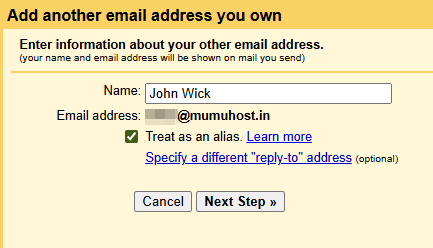
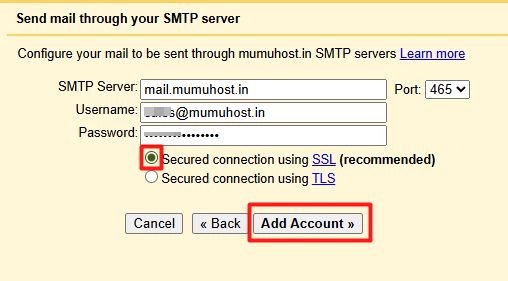
3. Configure your emails to be sent through your SMTP server using the settings below:
- SMTP server: mail.yourdomain.com
- Username: enter your full email address (e.g. [email protected])
- Password: enter the password for your email address
- Port: 465
- Secured connection using SSL
4. Click on ‘Add Account‘
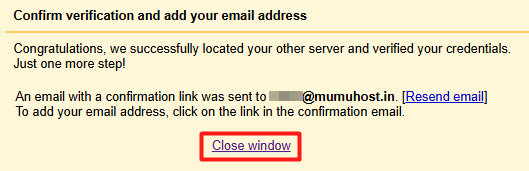
5. Confirm verification and add your email address. Gmail will send you an email with a confirmation link.
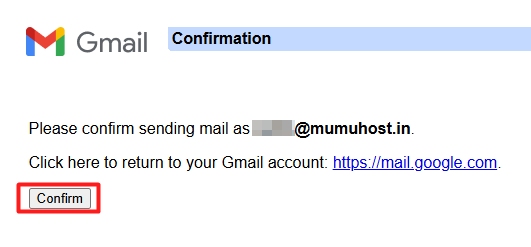
6. Login to webmail, check the email inbox, you will see confirmation link. Click on the link, you will see below message.
That’s a wrap! Now, you know how to set up your domain’s email address in your Gmail.com account.