
How to Set Up a Sub Domain in cPanel
The Subdomains function in cPanel lets you create a subdomain — a domain with an extra prefix that operates separately from the original domain. You could make a forum for your site (example.com) with an address of “forum.example.com” — or a blog, a test site, or any number of other variants. Read below for instructions on how to make a subdomain in your cPanel Hosting account.
The following directions will work for adding a new domain and subdomain to your cPanel account.
Step 1: Login into your cPanel
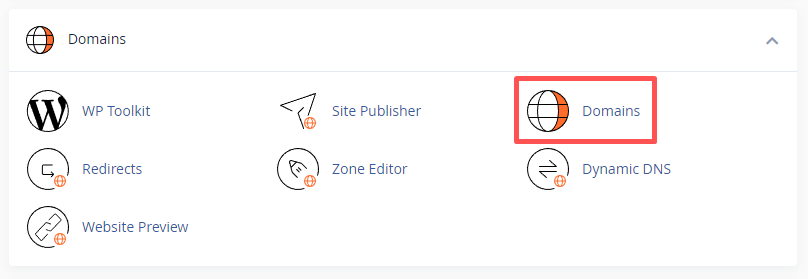
Step 2: Click Domains under the Domains section.
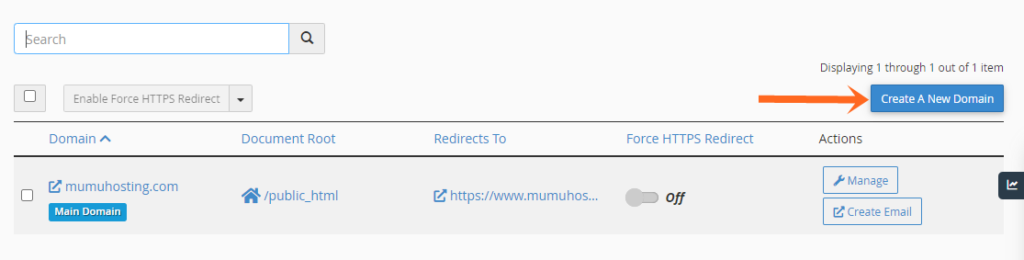
Step 3: Click on the Create A New Domain button.
Step 4: Type in the subdomain (or domain) you want to create in the “Domain” text box. Then deselect the “Share document root (/home/username/public_html) with domain.tld” option.
Click on the Home icon to locate the directory where you want the files for this subdomain to exist. In our example, we used the auto-generated directory.

Click the Submit button to add the subdomain to cPanel. A success message will appear confirming the creation of your new domain/subdomain.
It can take 24 hours for a new Subdomain to propagate (show up on the web).
That’s it, you have learned how to set up a subdomain in cPanel.